Docs/Local Compute

Workspace

Local Compute

A step-by-step walkthrough for downloading local setup files, starting the Docker adapter, syncing a local artifact, and running computations on your own machine.

Learn chapter

This chapter is a step-by-step local compute walkthrough. It shows you how to move from choosing a local artifact in WEEMS to running notebook computations on your own machine through Docker.

Audience

Use this guide when you want the runtime to live on your computer while keeping the WEEMS app, login, and project context in the normal online workflow.

In this chapter

  • Prepare Docker Desktop and a stable connection before you begin.
  • Select a local artifact, name the adapter, and download the setup bundle.
  • Run the local adapter container and verify it in Docker Desktop.
  • Connect WEEMS to the adapter, sync the selected Python image, and confirm it in Docker.
  • Start the machine, confirm the running state, and begin local notebook execution.

Before you start

Confirm the local setup prerequisites before you begin the walkthrough.

This guide walks you from selecting a local artifact in WEEMS all the way to running notebook computations on your own computer through Docker.

WEEMS still handles the product UI, login, and project context online, but the adapter, runtime image, and live compute session will be prepared locally on your machine in the steps below.

Docker Desktop must be ready

Install Docker first and make sure it is already running before you begin the local setup flow.

Keep Docker open

You will use the Docker window to confirm both the adapter container and the synced image later in the walkthrough.

Stable internet helps

Artifact sync and first-time machine startup can take longer on slower or unstable connections.

Step 1

Confirm Docker Desktop and your connection are ready

Before you touch the local setup flow, make sure Docker is installed, Docker Desktop is already running, and its window is open on your computer.

Docker needs to be available from the start because the walkthrough depends on it twice: first when you launch the local adapter container, and later when you verify that the selected runtime image was added successfully.

Keep the Docker window open while you work. A stable internet connection is just as important because syncing the artifact and starting the machine may need time to pull layers cleanly the first time.

Required before you continue

If Docker is still starting, closed, or unable to reach the network, the rest of the walkthrough can stall even when the WEEMS settings are correct.

Download and launch

Select the local artifact, download the setup bundle, and start the adapter container.

Step 2

Select the artifact, add an adapter name, and download the setup files

In the Machine popup, choose the local artifact you want, enter a meaningful adapter name, then download the generated setup bundle.

In the local setup area, choose the artifact image you want to run, keep the adapter URL set to http://127.0.0.1:8787, and enter any meaningful adapter name or label, such as My laptop or Office workstation.

After selecting your operating system, click Download Local Setup Files. The downloaded bundle includes the platform start script and a local-compute-quickstart.md file you can open any time for the same steps in written form.

Adapter name tip

The adapter name does not need to match your computer hostname. Any name that helps you recognize the machine later is fine.

Walkthrough video
Select the artifact, enter a meaningful adapter name, choose the platform, and download the setup bundle from the Machine popup.
Step 3

Run the local adapter container

Open the downloaded Weems folder and run the included start script for your operating system to bring up the adapter container.

Extract the downloaded Weems folder and run the start script inside it. That script launches the local adapter container and exposes it at http://127.0.0.1:8787.

The first launch can take a little longer because Docker may need to build or pull supporting layers before the adapter is fully ready.

Run the platform script

  • Windows: Run start-local-compute.bat from the extracted Weems folder.
  • macOS: Run chmod +x start-local-compute.sh, xattr -d com.apple.quarantine start-local-compute.sh 2>/dev/null || true, then ./start-local-compute.sh.
  • Linux: Run chmod +x start-local-compute.sh, then ./start-local-compute.sh.

Expected output

A healthy launch usually shows Docker compose startup lines and a message confirming that the local adapter is starting on http://127.0.0.1:8787.

Walkthrough video
Run the generated start script from the downloaded setup bundle to launch the adapter container in Docker.
Step 4

Verify that the adapter container was added in Docker

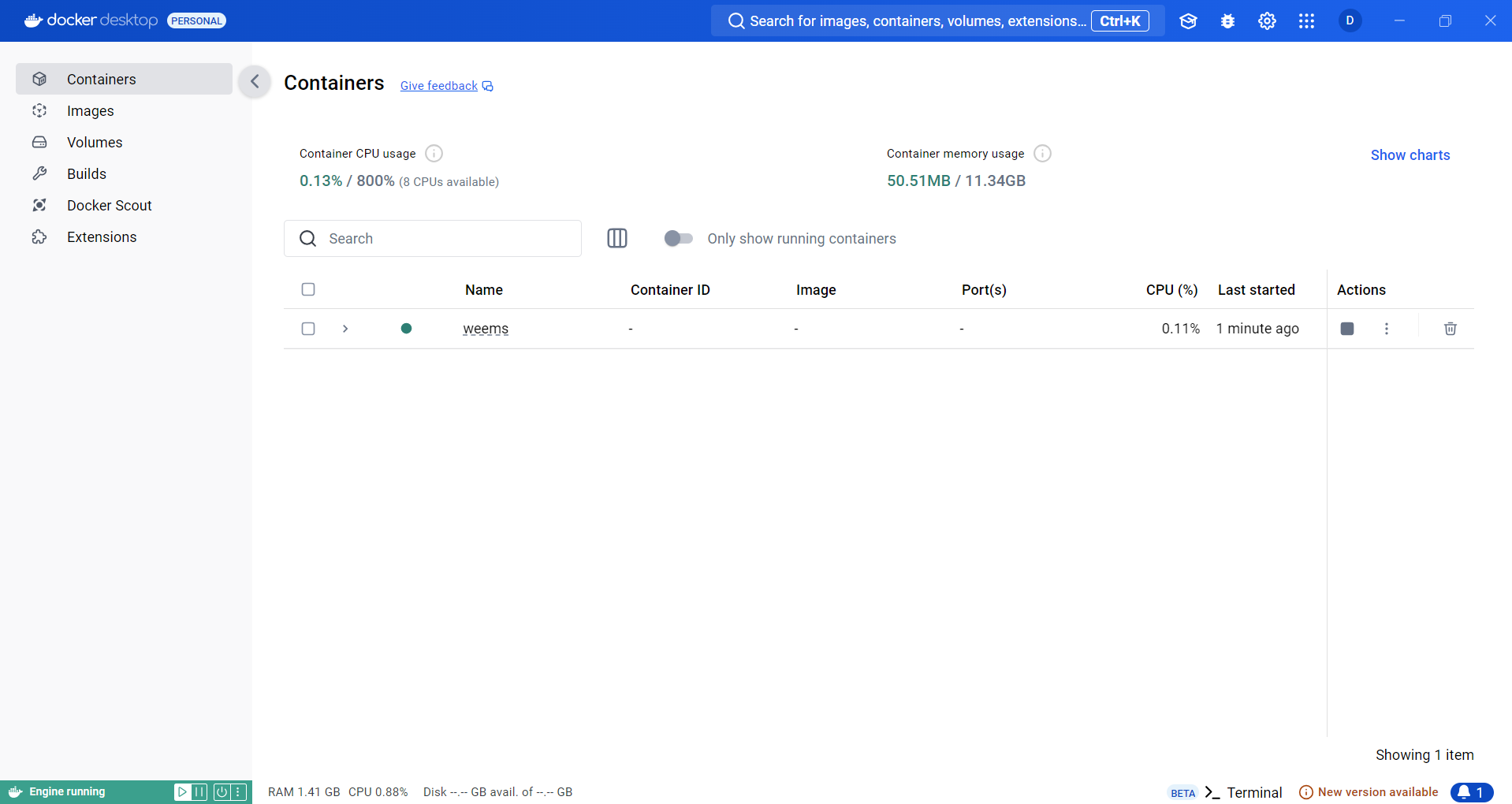
Open Docker Desktop and confirm that the local adapter container now appears in the Containers view.

After the start script finishes, switch to Docker Desktop and look for the local adapter container. In this setup it should appear as weems-local-adapter.

This Docker check is the quickest way to confirm that the adapter was actually created on your machine before you try to connect to it from WEEMS.

If the container is missing

Wait for Docker Desktop to finish initializing, then rerun the start script from the extracted setup folder.

Docker Desktop showing the local adapter container running after the setup script completes.
Screenshot
Use Docker Desktop to confirm that the local adapter container was created before returning to the Machine popup.

Connect and sync

Connect WEEMS to the adapter, then sync the selected Python image into Docker.

Step 5

Click Connect & Check to verify the adapter health

Return to WEEMS and use the Connect & Check button to make sure the adapter is running and reachable.

Go back to the Machine popup, keep the adapter URL pointed at http://127.0.0.1:8787, and click Connect & Check. This confirms that WEEMS can reach the adapter container you just started.

Once the check succeeds, the Machine popup has verified the local adapter handshake and you can move on to syncing the selected runtime image.

What success looks like

After a successful connection check, you should see Health: OK and Network: OK. Storage can stay pending until the artifact sync is complete.

Walkthrough video
Use the Machine popup to connect to the local adapter and confirm that the health check passes.
Step 6

Sync the selected Python image

Click Sync Artifact to download the selected Python image into Docker before you start the machine.

With the adapter connected, click Sync Artifact to download the selected Python image into Docker. This is the runtime image your local machine will use for notebook execution.

Depending on your network speed and whether the image has already been pulled on this computer, this step may take some time. It is normal for the first sync to be the slowest one.

Give the sync time to finish

Leave the Machine popup open and let the sync complete before moving on. A partial or interrupted download can prevent the machine from starting cleanly.

Walkthrough video
Sync the selected Python artifact into Docker and wait for the runtime image to finish downloading.
Step 7

Verify that the image was added in Docker

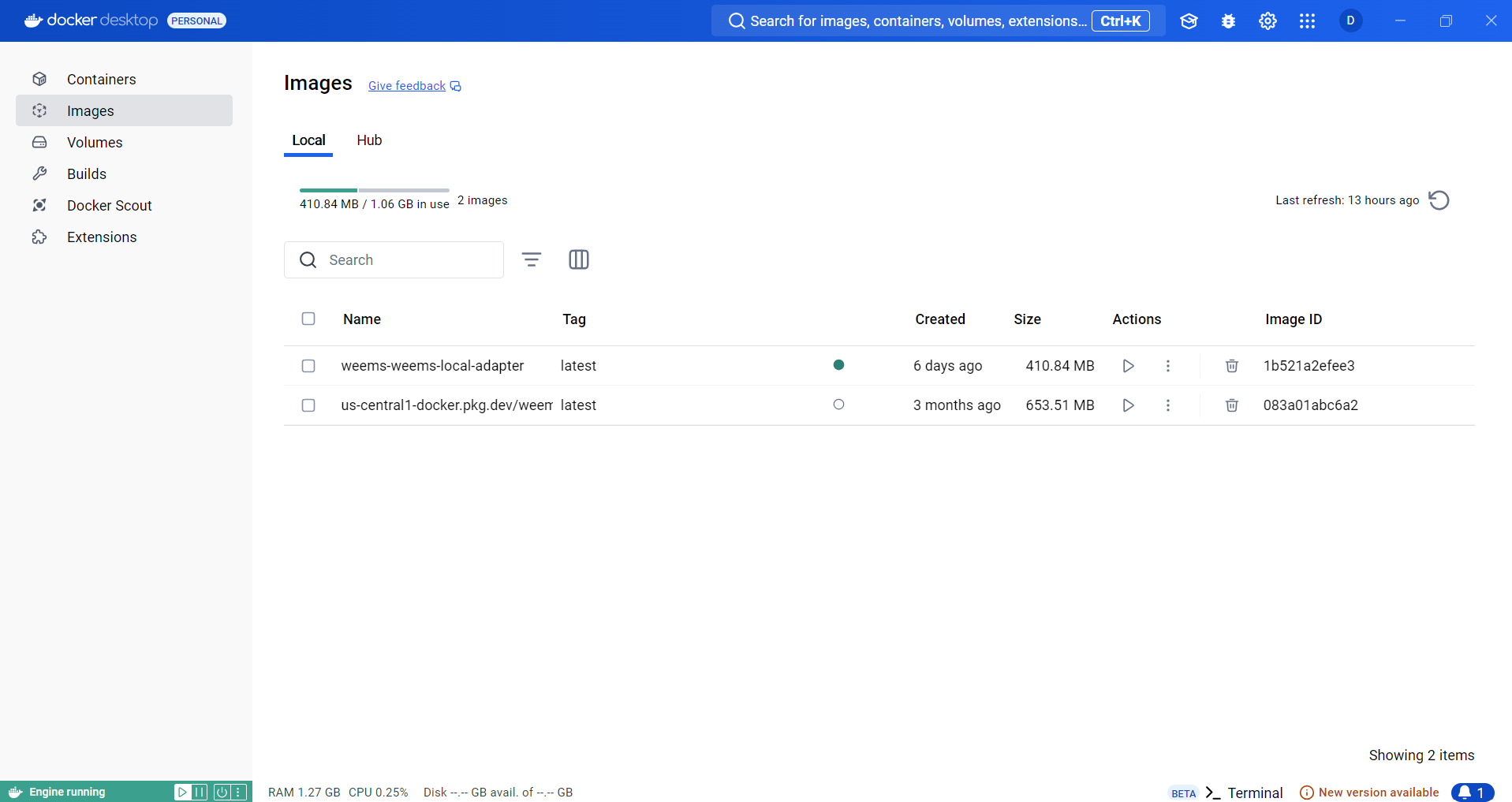
Open Docker Desktop again and confirm that the synced image appears in the Images tab.

Switch back to Docker Desktop and open the Images tab. The image that matches the artifact you selected in WEEMS should now appear there.

Seeing the image in Docker is the clearest confirmation that the local runtime has finished downloading and is ready to back the next machine-start step.

If you do not see the image

Return to WEEMS, run Sync Artifact again, and wait for the pull to finish before checking Docker one more time.

Docker Desktop Images tab showing the synced local compute image after artifact download.
Screenshot
Check Docker Desktop to confirm that the selected runtime image is now stored locally on your machine.

Start and run

Start the local machine, confirm the running state, then move back into notebook execution.

Step 8

Start the machine

After the image is available locally, click Start Machine to launch the runtime on your computer.

Back in WEEMS, click Start Machine to launch the local runtime using the adapter and image you just prepared.

This step can also take some time depending on network speed, cached layers, and whether it is the first time you are starting that image on the computer.

Let the first start finish

Avoid retrying too quickly unless the UI shows a clear failure. A slower first start is normal while the machine finishes preparing the runtime.

WEEMS Machine popup showing the local machine in the starting state after clicking Start Machine.
Screenshot
Use the Start Machine action after the adapter is connected and the selected runtime image is already synced.
Step 9

Confirm that the machine started successfully

Check the machine state before running notebook code so you know the runtime is actually ready.

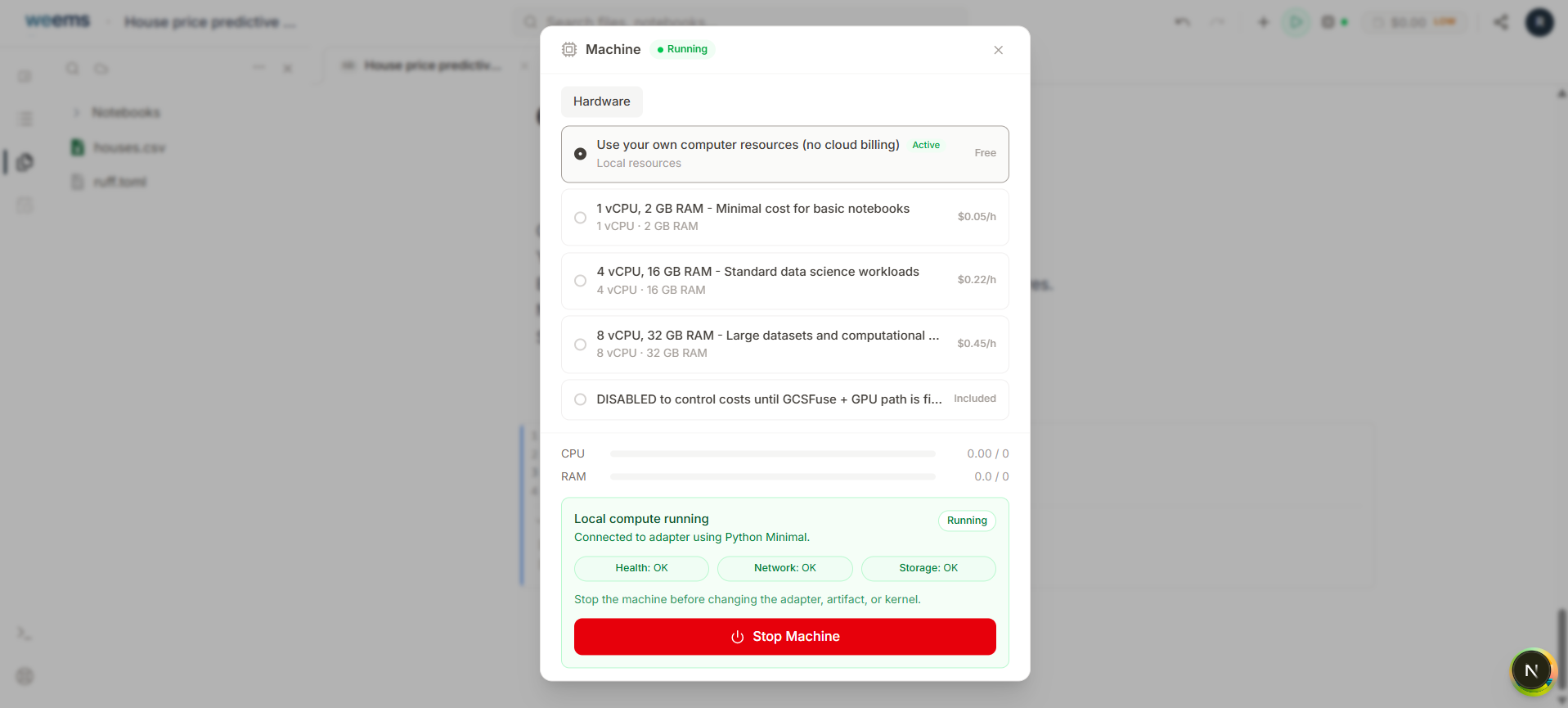
A successful start changes the main button to Stop Machine and the machine status badge to Running.

In the local setup panel, you should also see the full set of good states together: Health: OK, Network: OK, and Storage: OK.

This is your green light

When the running badge and the three OK states are visible together, the local runtime is ready for notebook execution.

WEEMS Machine popup showing the local machine in a running state with local checks passing.
Screenshot
Use the running badge and the OK status pills as the confirmation that the local machine started successfully.
Step 10

Run computations locally

Once the machine is running, you can go back to the notebook and execute work on your own machine resources.

Return to your notebook and run computations as usual. The WEEMS experience stays the same, but the execution now comes from the local adapter and runtime you prepared on your computer.

This is the point where local compute stops being setup work and becomes your active working environment.

Try a quick proof

Run a simple Python cell or the next notebook block while keeping the Machine panel visible so you can confirm the local machine stays in the Running state.

Walkthrough video
With the local machine running, execute notebook work in WEEMS using your own Docker-backed resources.

Completion

Wrap up the tutorial and keep the right references nearby for later.

Step 11

You completed the walkthrough

Your local adapter is connected, the selected artifact is synced, and the machine is ready to run computations through Docker.

You now have the full local compute chain working on your machine: Docker is running, the adapter container is live, the selected image is stored locally, and the WEEMS machine is up.

If you ever want a refresher, reopen the downloaded local-compute-quickstart.md file from the setup bundle and follow the same sequence again.

Congratulations

You can now keep working in WEEMS while using your own machine resources for local compute.

WEEMS Documentation

Product guides for projects, canvas workflows, and materials reference handoff.