Workspace
Canvas
Understand the canvas workspace, block workflows, notebook structure, sidebar navigation, files, and table of contents behavior.
On this page
What canvas is
On this page
What canvas is
On this page
What canvas is
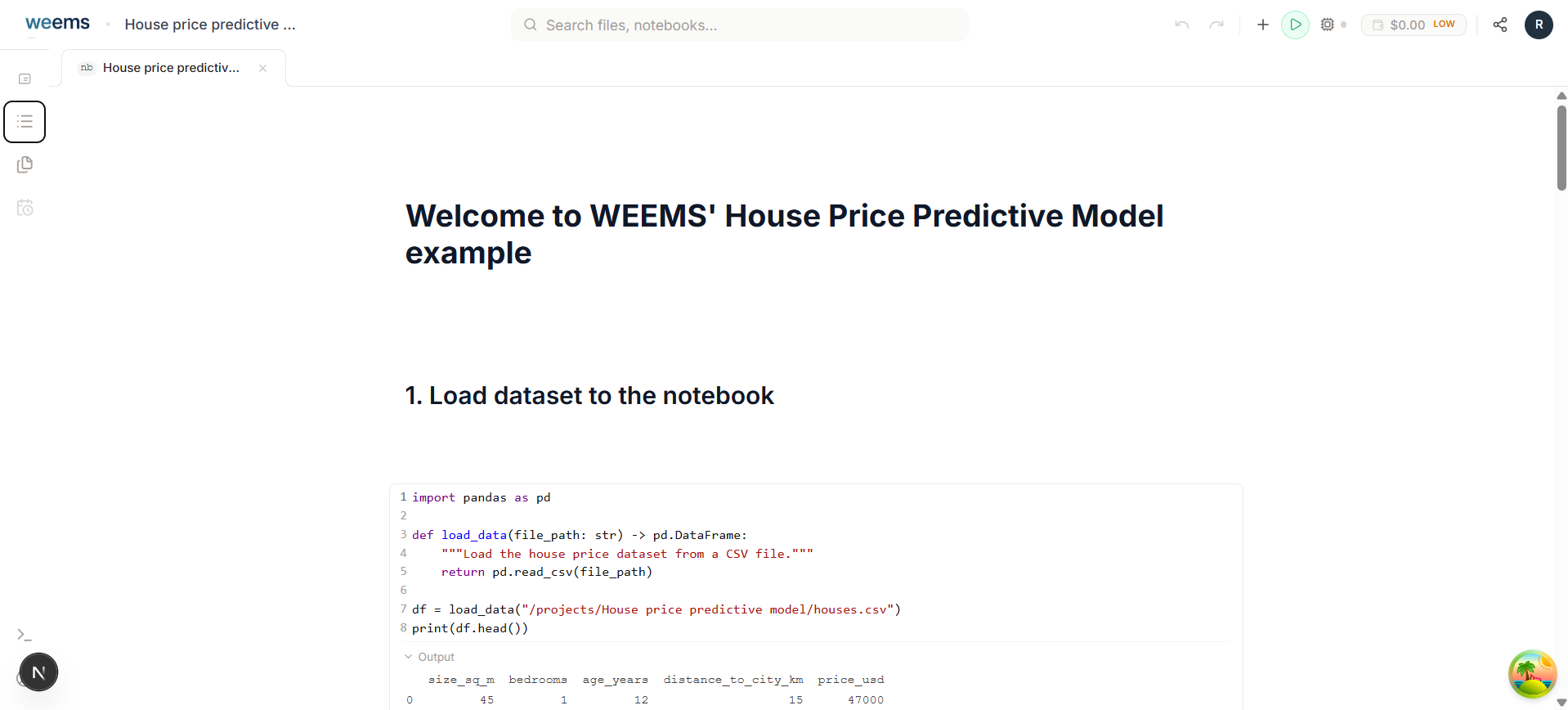
Canvas is the main notebook workspace inside a project.
Once you open a project and select a notebook, canvas becomes the place where the work actually happens. It keeps the active notebook in the center while surrounding it with the tools that support the workflow, including files, outline navigation, block insertion, and execution controls.
The goal is not just editing text or code. Canvas is meant to keep the technical narrative, executable steps, and supporting workspace tools in one surface so you can move faster without losing context.
Notebook-first
Canvas is centered on the active notebook rather than treating notebooks as a secondary attachment.
Execution-aware
The workspace keeps actions like Add Block, Run All, and assistant suggestions close to the notebook content.
Blocks and notebooks
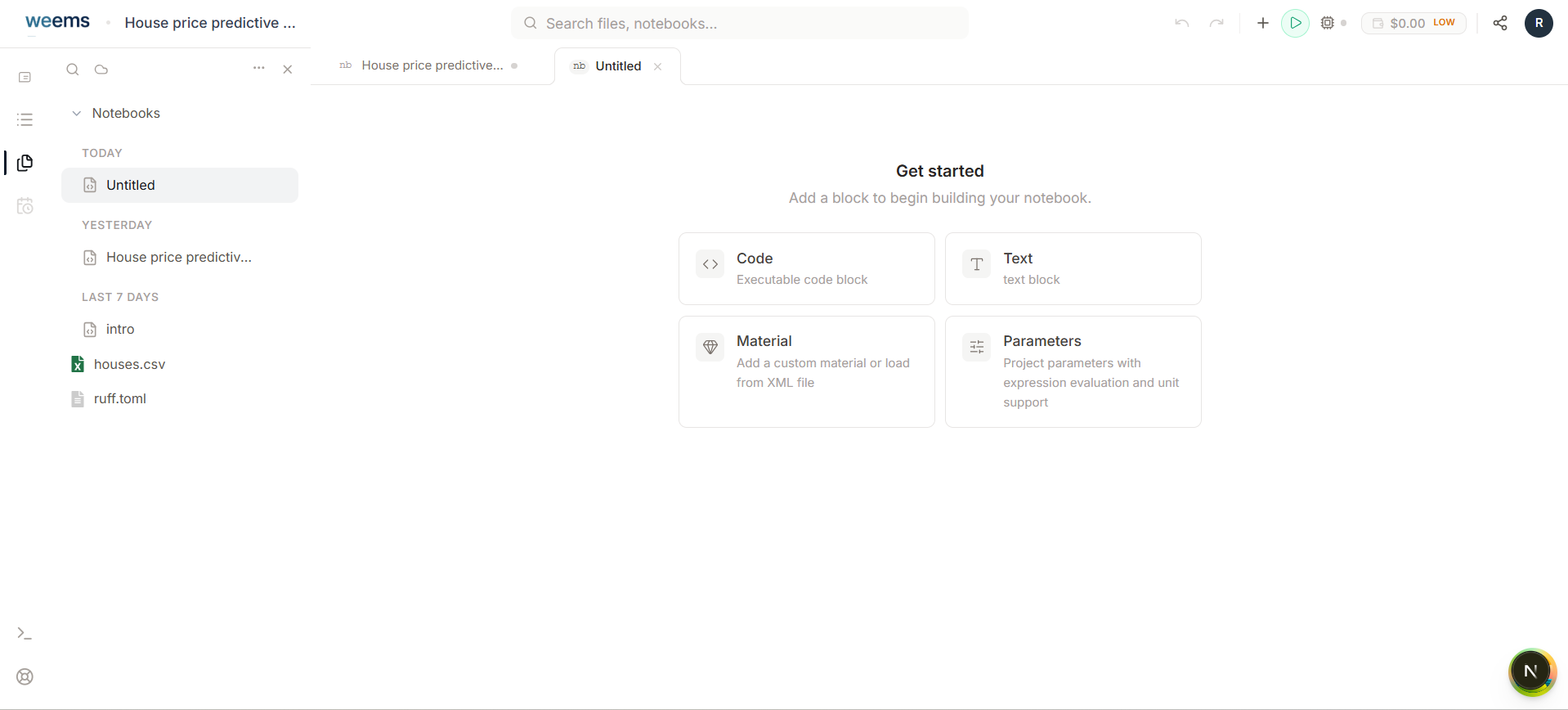
A notebook in WEEMS is built from blocks, which makes document structure explicit and flexible.
Instead of treating the notebook as one uniform editing mode, canvas lets you add block types that match the job you are doing. Today the most visible block paths include Code,Text, Material, and Parameter
This makes it easier to mix narrative structure, executable work, and domain-specific technical operations inside the same notebook.
Working well in canvas
The cleanest canvas workflows usually come from treating the notebook as a structured technical document.
Start with notebook structure
Use text blocks and headings early so the notebook gets a usable outline before it becomes large.
Add the right block type for the task
Use text for explanation, code for execution, and specialized blocks only when the workflow requires them.
Use sidebar surfaces intentionally
Switch between Contents, Files, and More based on what the current task needs instead of leaving one mode open by default.
Reach for machine tools when execution demands it
Bring in machine, logs, and terminal tools when compute or runtime inspection becomes part of the workflow.
WEEMS Documentation
Product guides for projects, canvas workflows, and materials reference handoff.